Create New Project
Prerequisite
Make sure the prerequisites in the installation section are met.
Structure
By default, a project created with FastPlaz has the following directory structure:
├── docs
├── public_html
└── source
    ├── api
    │   ├── controllers
    │   └── routes
    ├── app
    │   ├── controllers
    │   └── routes
    ├── common
    │   ├── controllers
    │   └── models
    └── sql
It is recommended to keep controllers, models and routes separate.
Below is an example project structure of an application generated with the Full Package Application feature.
.
├── app
│   ├── build.sh
│   ├── clean.sh
│   ├── controllers
│   │   ├── app_controller.pas
│   │   ├── database_controller.pas
│   │   ├── example_controller.pas
│   │   └── example_form_controller.pas
│   ├── extra.cfg
│   ├── fastplaz.lpi
│   ├── fastplaz.lpr
│   ├── fastplaz.lps
│   └── routes
│       └── app_routes.pas
├── common
│   ├── controllers
│   └── models
│       ├── db_model.pas
│       └── warehouse_model.pas
└── sql
    └── db.sql
Note also that the file names are consistent and easy to read.
Naming
FastPlaz recommends a standard naming scheme for the unit files in a project. Each file name starts with its 'task name', followed by its role (_controller, _model, _route). The task name should also match the permalink that will be used.
For example, to create a controller that handles the url http://localhost/employee, the controller unit file is named employee_controller.pas.
Likewise, for a model file that accesses the employees table, the model unit file is named employee_model.pas.
url: http://localhost/employee
tabel: employees
file controller : employee_controller.pas
file model      : employee_model.pas
Wizard
The Wizard is a FastPlaz feature that makes it easier for engineers to build applications. With just a few clicks, the features you want are generated automatically.
Simple and API Application
A new FastPlaz Project can be created from the File|New Project ... menu.
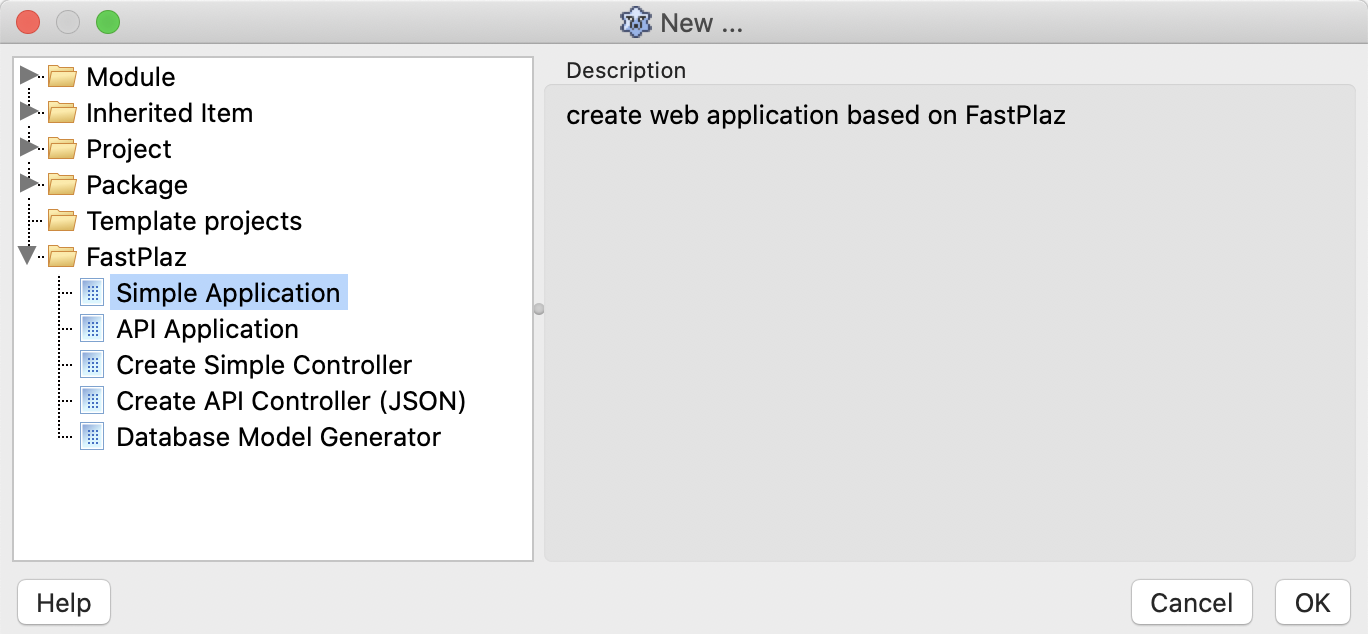
There are 2 options:
- Simple Application Creates a simple FastPlaz-based application with a ready-made simple theme. This option helps developers who want to build a custom project.
- API Application Building an API (Application Programming Interface) is easier with this option. It generates the project files along with a sample JSON output.
Next, a dialog like this will appear:
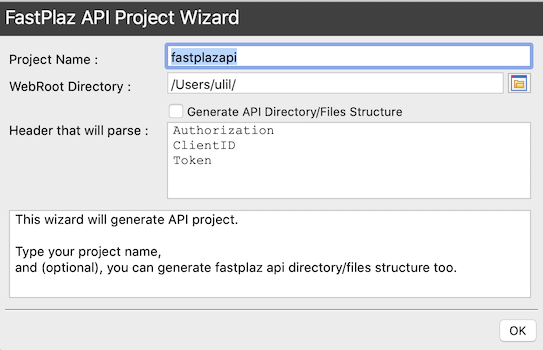
Enter the project name you need, and also the webroot directory, which is the directory the web server reads the website from.
Select the generate structure option if you want the application/api directory structure to be created automatically. This option is recommended for beginners.
If you are building an API that needs to parse parameters from the Header, enter the names of the header variables to use. APIs usually need headers such as token, client-id, client-secret and so on.
Full Package Application
Want to build a more complex and advanced application? With database access and a choice of attractive themes? Use this option.
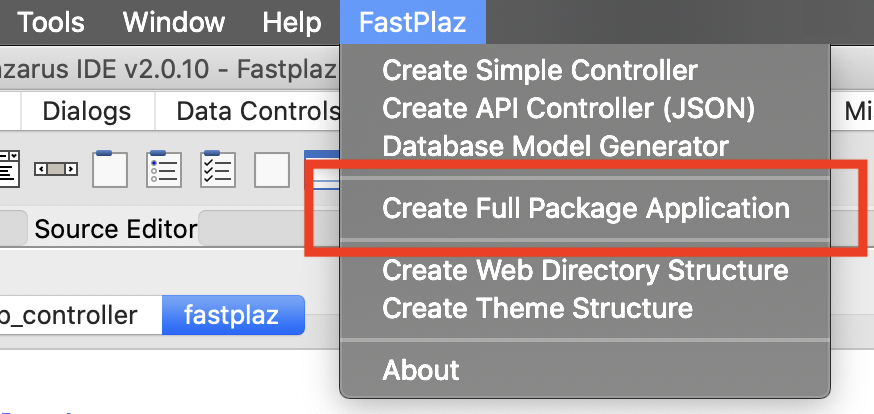
Then enter the project name and the target directory where the application will be created.
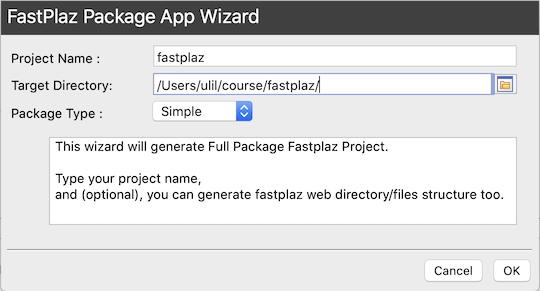
The following directories and files will then be created
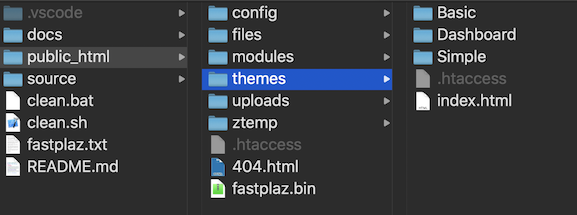
Ready-to-use themes are provided:
- Basic
- Simple
- Dashboard
If compilation succeeds, the page in the browser will look like this:
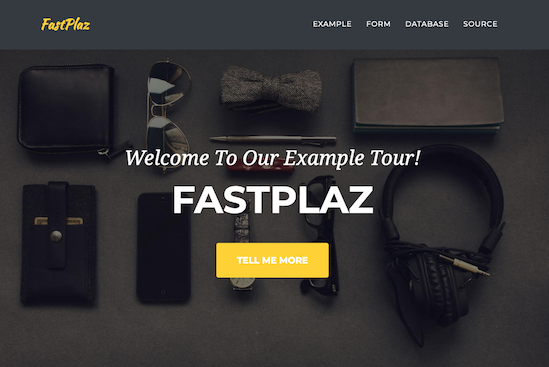
This template already includes sample code for
- Form handling, with simple CSRF security. POST method and file upload.
- Viewing data from a database. For database access using ajax (jsGrid), see the Database Example repo.
- Reading variables from the query string.
- Using Session.
- Using a custom module layout.
- Using a custom global layout for the Home page.
- Assigning variables in the theme.
- Flash Messages
FastPlaz also provides several tag variables you can use in your theme. Details are in the FTE - FastPlaz Theme Engine section of this documentation.